General
What is Adme?
ADME is a centralized platform that optimizes communications between all types of users. Our mission is to simplify people’s lives.
Our application allows organizations to communicate quickly, efficiently, and simply with their members, while ensuring a user experience that eases the burden on both the wallet and the mind of all members.
For members, our application allows them to have all their loyalty cards in one place and to subscribe to other organizations with a single click.
ADME is a virtual wallet for all the cards we use to collect points or rewards or to identify ourselves to a merchant.
How to get in touch with us?
You can reach us by phone at 514-617-ADME (2363) or by email at info@adme.world
How to get a package?
To properly assess your needs, we invite you to contact us for more information. You can reach us by phone at 514-617-ADME (2363) or by email at info@adme.world
How to get the app?
You can download the Apple app by clicking here.
You can download the Android app by clicking here.
Login
How to log in?
Open the app, click “Sign in,” and enter your email address and password to log in.
You cannot have two accounts with the same email address. If you have an organization account and want a member-only account, you will need to use a different email address.
How to recover your password?
To recover your password, click “Forgot your password?”
Enter your email address and check your inbox. Don’t forget to check your spam folder.
Click the link in the email to change your password.
Member Account
What is a member account?
A membership account is for anyone who has loyalty cards in their wallet.
ADME is a virtual wallet for all the cards we have to collect points or rewards or to identify ourselves with a merchant.
With this type of account, you can add your cards to the app, see all available cards, and request a card from the app from a merchant you don’t already have.
What’s the point of requesting a new card? It will allow you to receive notifications when that merchant posts an offer or event online. You won’t miss any offers!
Once your cards are entered into the app, you won’t need to carry them with you; you can scan them directly in-store as if you had your card in hand!
**Only the Costco card, cannot be scanned in-store**
How to create a MEMBER account?
Open the app and click “Register.”
When creating an account, it’s important to choose the correct account type: Member.
Read the privacy policy and check the box to accept it, then click “Create Account.”
How do I set up my MEMBER profile?
To configure your profile:
- Click “Edit Profile”
- You can change your name, phone number, choose your gender, location, and enter your date of birth.
- Once you have completed your information, click “Update Information.”
Can I manage notifications?
When you first open the app, your phone will ask you if you agree to receive notifications. It’s important to allow them. This applies to general app notifications.
You can then select which card(s) you agree to receive notifications for.
To choose whether to receive notifications for a card, click on the card, then click the three dots in the top right corner and toggle the “Notifications” switch on or off.
How to add/delete a personal card?
To add a personal card, click the orange + in the top right corner, scan your barcode, and name your card.
To view all your cards, once added, tap the card icon and scroll left.
To delete one of these cards, tap the card and then the trash can in the top right corner.
How do I get a new card if I'm not a member? To see all your cards, once added, tap the card icon and scroll left. To delete one of these cards, tap the card and then the trash can in the top right corner.
Go to the “Card Market” section and click on the card icon in the top right corner. You can scroll through the cards and tap the one you’d like to request.
Then tap on the card image and a window will open with a “Become a Member” button. Click this button and a card request will be sent to the organization.
You will now see this card in the Membership Cards section.
How can I see offers & events?
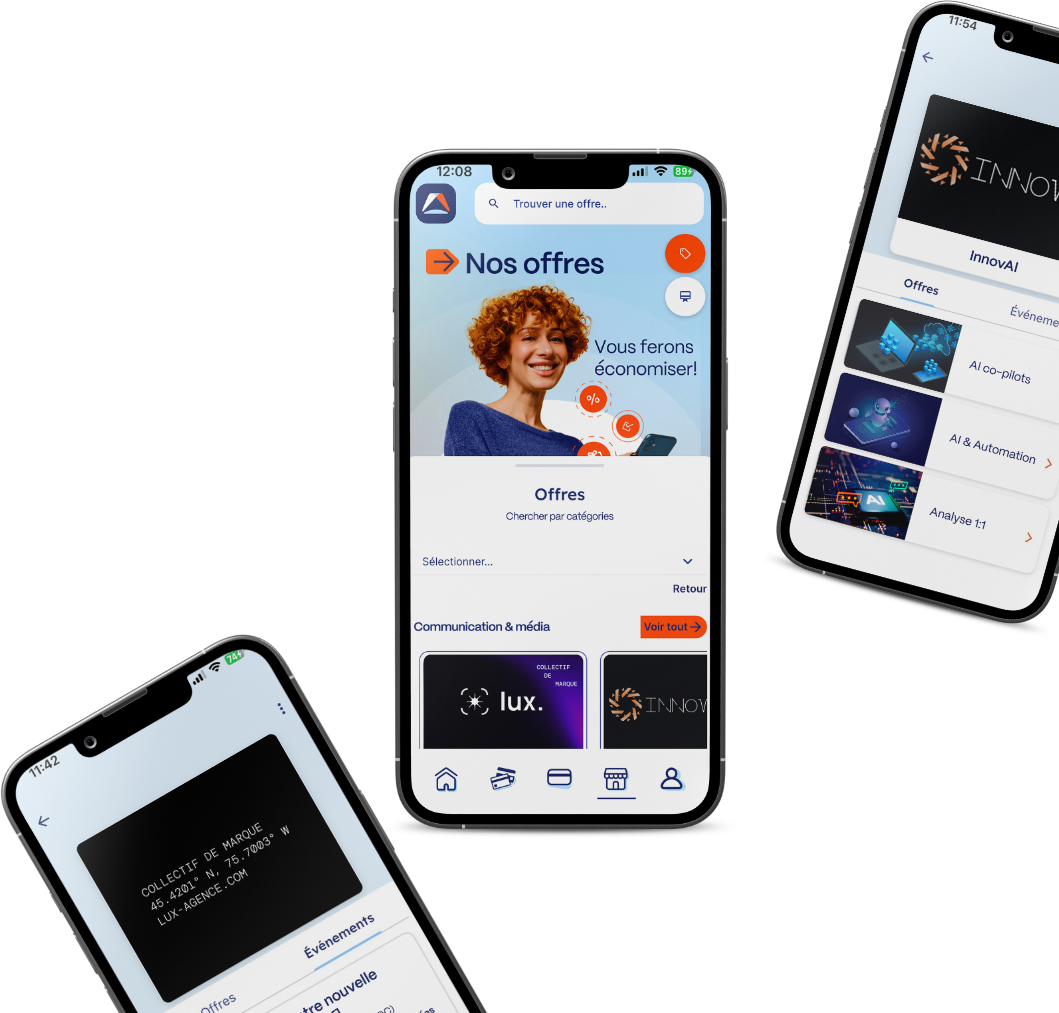
In the Card Market section, there’s a coupon icon in the top right corner. Clicking on it will show you all offers from participating organizations.
You can browse by category or scroll through the offers and click “See All.”
For more details on an offer, click “Go to Offer” at the bottom of the offer image.
Business Account
What is an ORGANIZATION account?
An organization account is for anyone who owns a business, an association, or clients.
As an organization, you can create your loyalty card(s) and then publish your offers and events to notify your members via a notification for each post.
You have access to statistics related to your card, your offers, and your events.
You can approve card requests or automatically accept all card requests.
Need advice on inviting your clients to use the app?
Contact us; we’ll be happy to help!
How to create an ORGANIZATION account?
Open the app and click “Register.”
When creating an account, it’s important to choose the correct account type: organization.
Choose the correct tab (organization) and enter your login information.
Read the privacy policy and check the box to accept, then click “Create Account.”
How to configure the ORGANIZATION profile?
To set up your profile:
- Click “Edit Profile.”
- Choose a picture for your organization.
- You can edit your name and description.
- Add a link to direct people to your website, Facebook page, or online store.
- You can also choose a category to display your map, offers, and events.
- Once you’ve completed your information, click “Update Information.”
How to create/delete an organization card?
Go to the “Cards” section and click the orange + in the top right corner.
- Select an image. The image must be landscape and have a 3:2 aspect ratio to display properly.
- Enter a name for your membership card and a description of its use (why subscribe, what does it give you access to, etc.)
- You must choose whether you want to manually approve card requests or automatically accept them. NOTE: This feature cannot be changed later; if you want to change the approval process, you will have to delete the card and create a new one.
- Check the box if you want to manually approve membership card requests. We recommend leaving this box unchecked due to the potentially large number of requests.
- Choose one or more keywords so people can easily find you with the search tool.
- Then click “Create Card.”
To delete a card, click on the card image and then on the trash can icon in the top right corner.
How to accept a subscription request for your card?
To view card requests, go to the “Card” section and click on your card image.
You will see a “Members” section, an “Existing Membership Request” section, a “New Membership Request” section, and the number of times the card has been clicked.
In the “Members” section, you will see the number of people who have subscribed to the card.
In the “Existing Membership Request” section, you will see the number of people who have requested a membership card through the app.
In the “New Membership Request” section, you will see pending approval requests if you have selected to manually authorize them. Click on them to authorize them.
How to view your organization card statistics?
To view your card’s statistics, go to the “Cards” section and click on your card’s image.
You’ll see all your card’s performance details at the bottom of this page.
How to create/delete an offer?
To create an offer, go to the “Cards” section and click on your card image.
Click on your card image again to access the “My Offers” and “My Events” sections.
To create a new offer, click on the “My Offers” tab and then click the “Create Offer” button in the bottom right corner.
Choose an image, add a catchy title to your offer, a short description, and a link to your website or the page related to the offer.
Click “Create Offer” to complete the creation.
To delete an offer, click on it, then click the trash can in the top right corner to delete it.
How to create/delete an event?
To create an event, go to the “Cards” section and click on your card image.
- Click on your card image again to access the “Offers” and “Events” sections.
- To create a new event, click on the “My Events” tab and then click the “Create Event” button in the bottom right corner.
- Include a catchy title, a short description, a link to your website or activity page, as well as the location and date and time of the event.
- Click “Create Event” to complete the creation.
To delete an event, click on it, then click the trash can in the top right corner to delete it.
Simplify your life download the app.
- Download on the App Store
- Android version coming soon